Browse docs
How to upgrade & pay
A picture-by-picture walkthrough of moving from your free trial to a paid plan — and managing it afterward.
When do I need to upgrade?
Every business starts with a 30-day free trial of the full Team feature set. You'll want to upgrade when one of these happens:
- Your trial ended. The account goes read-only — everyone can still view the schedule, but no one can make changes until you pick a paid plan.
- You hit a Team feature after the trial — like shift swaps or time-off approvals — and Daypart says it's not included in your current plan.
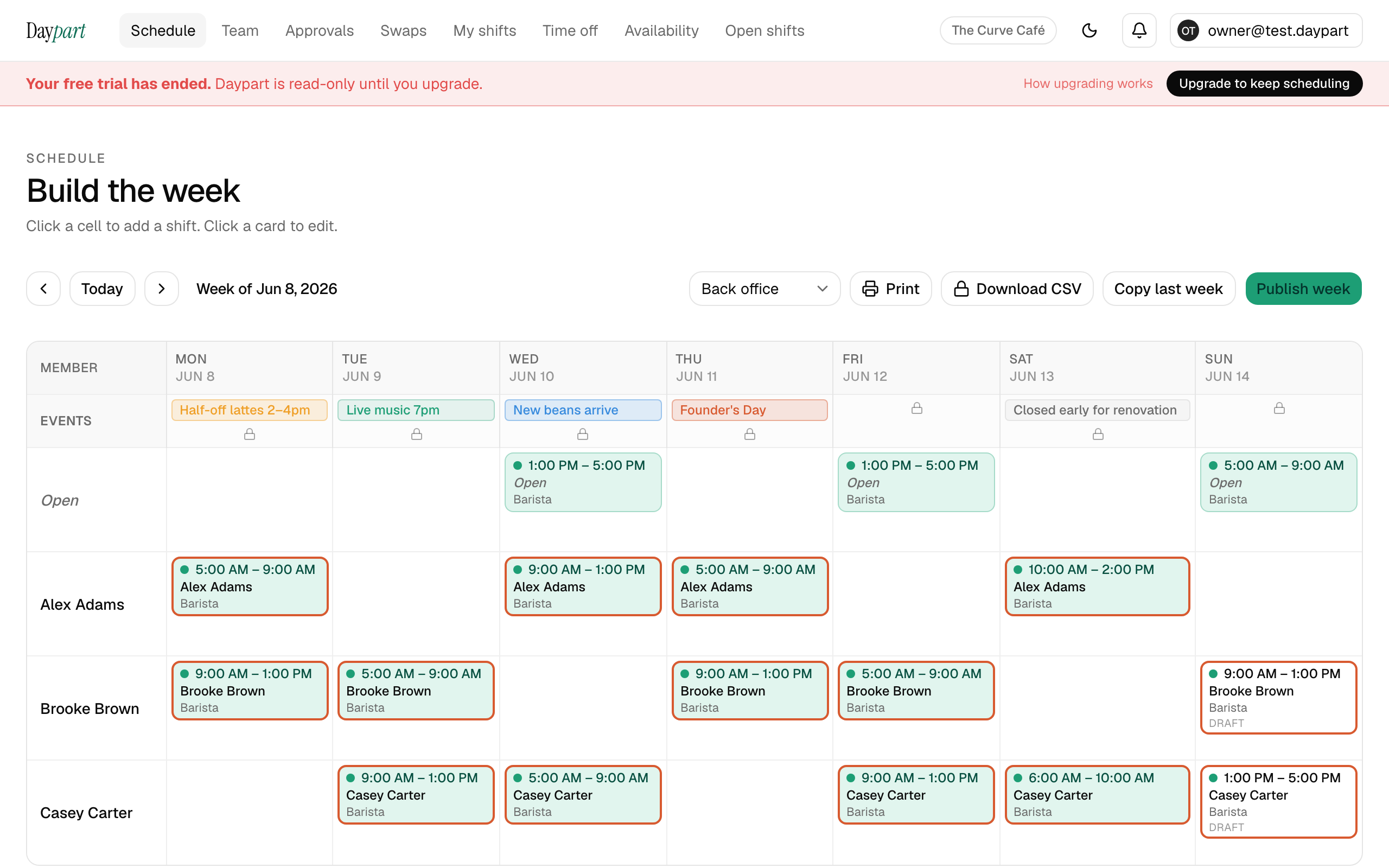
Upgrading unlocks everything instantly
Two things to know first
- Only the owner can upgrade. Billing is owner-only. If you're a manager or employee, send this page to whoever owns the business — it takes a minute.
- Upgrade on the web. Billing lives at daypart.app in a browser. You can't upgrade inside the iOS app — open the website to manage your plan.
What you get
Team — $20/mo · 10 locations, up to 75 members. Shift swaps, time-off approvals with history, multiple managers, role colors, the day-level events row, guest team members, operator reporting (hours, overtime alerts, weekly email), CSV / payroll exports (Gusto, QuickBooks), and a multi-location overview — everything, one plan.
See the full list in Account & billing.
Upgrade step by step
Open Billing
Sign in as the owner, then open Billing from the account menu in the top corner (or from Settings). You'll see your current plan and what each tier includes.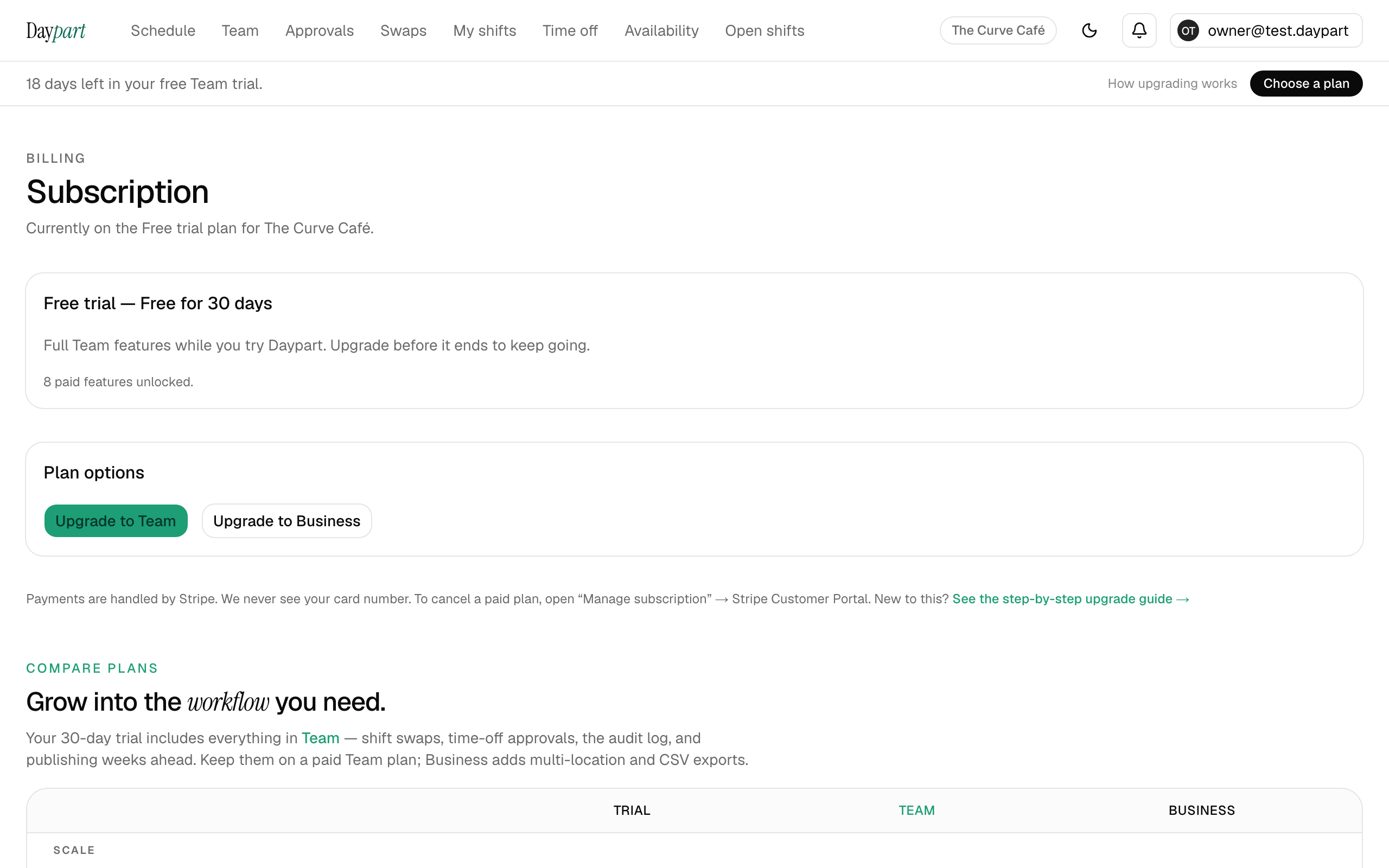
Billing — your current plan and upgrade options (owner only). Upgrade to Team
Click Upgrade to Team (use Compare plans if you want the full feature list first).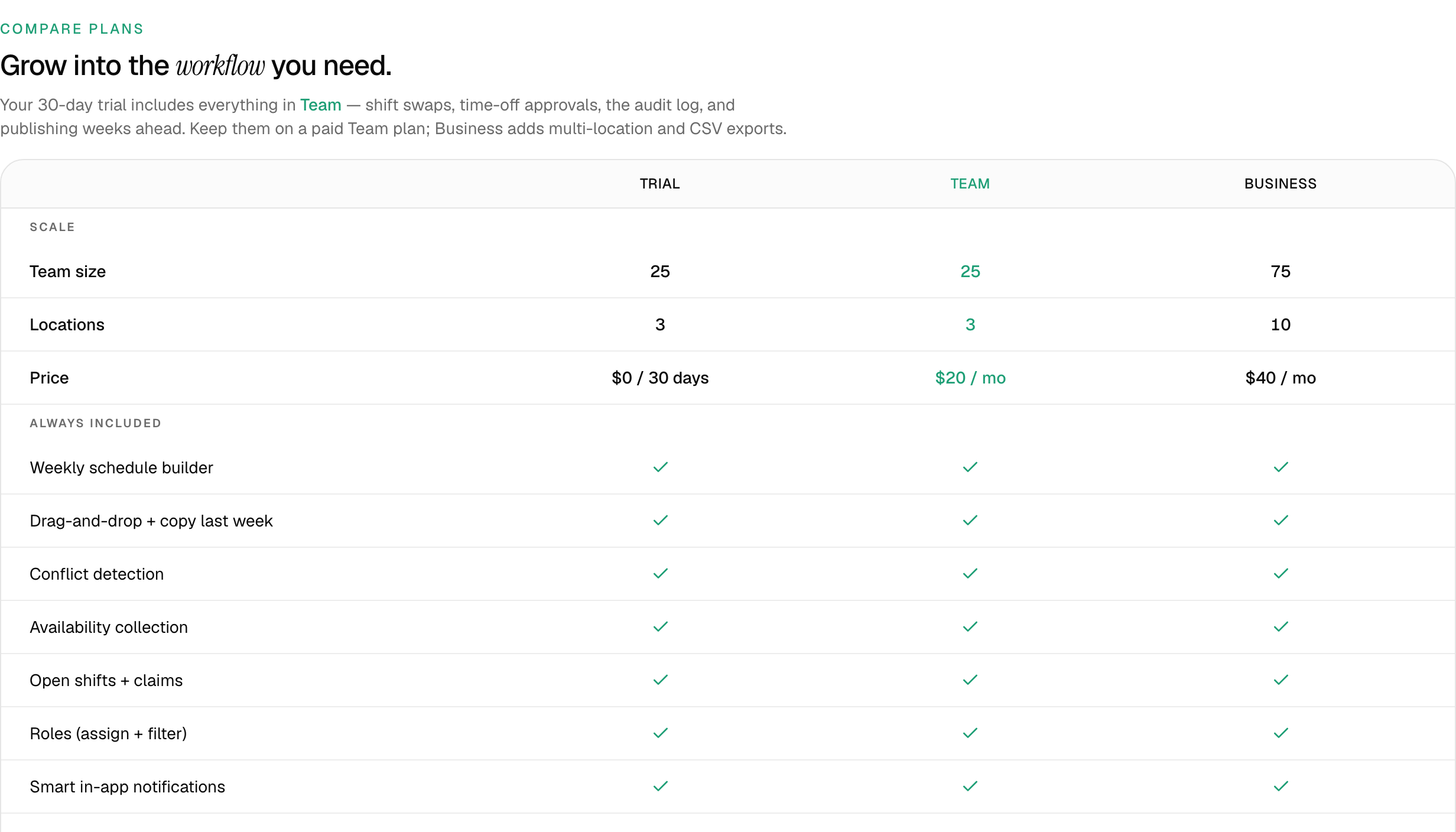
Upgrade to Team — one plan, everything included. Pay on Stripe's secure checkout
You're taken to a secure checkout page to enter your card and confirm. Daypart never sees or stores your card — payment is handled entirely by Stripe. You're billed monthly and can cancel anytime.
Secure checkout, powered by Stripe. You're upgraded
After payment you land back in Daypart and the plan card updates — features unlock immediately. (If it still shows the trial, give it a moment and refresh; the confirmation can take a few seconds.)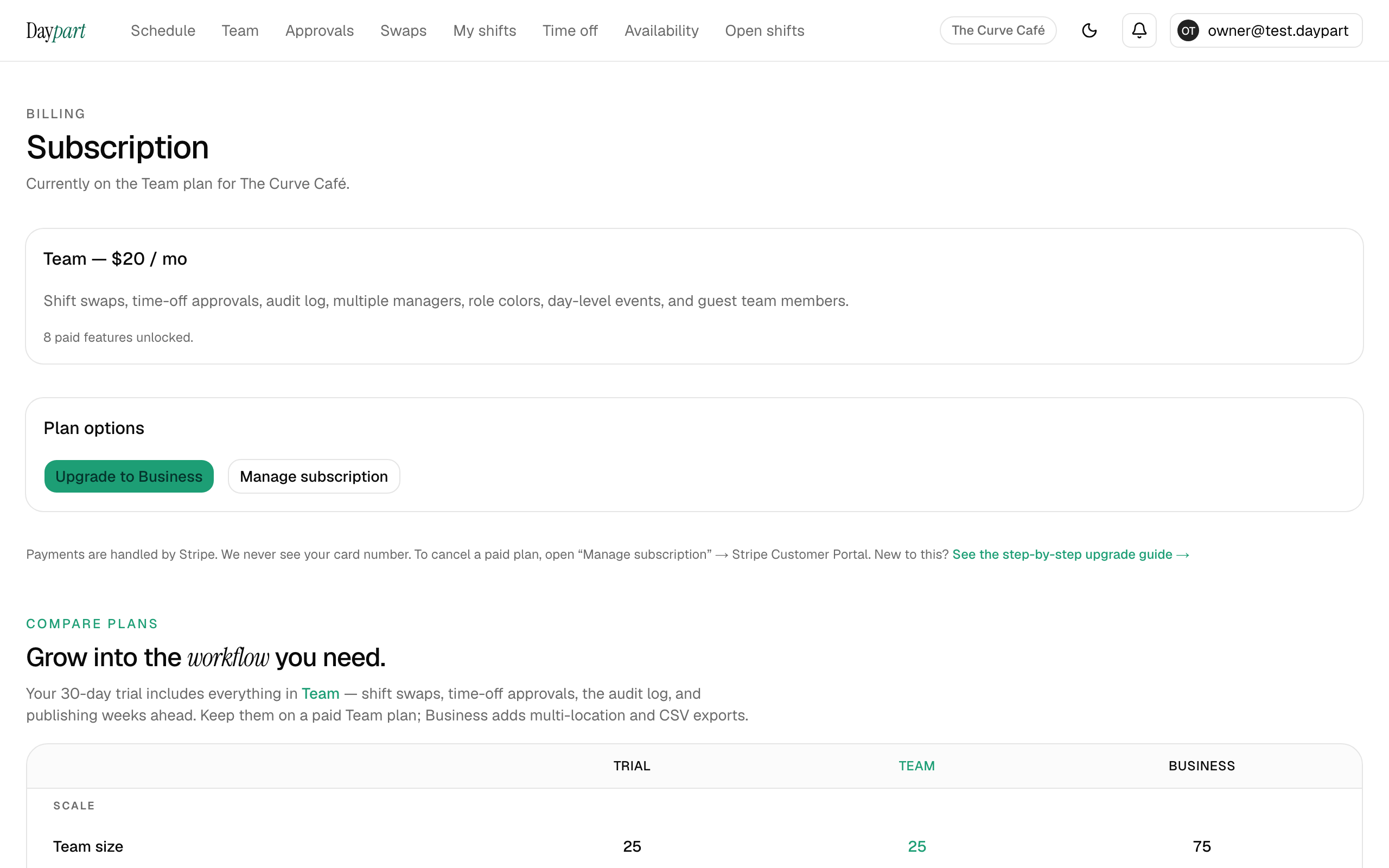
Upgraded — paid plan active, features unlocked. Manage anytime
Back on the Billing page, Manage subscription opens the Stripe customer portal, where you can update your card, download invoices and receipts, and change or cancel your plan.
Manage your plan — update payment, get receipts, or cancel.
Troubleshooting
- I paid but it still says trial. Refresh the page — the payment confirmation can take a few seconds to arrive.
- I don't see Billing. Only the business owner sees it. If you're a manager or employee, ask your owner; if you own more than one business, make sure you're on the right one.
- My card was declined. Checkout is handled by Stripe — try another card or contact your bank, then start the upgrade again.
Looking for the quick version, or the full plan comparison? See Sign up for a Team account and Account & billing.